How to Put Amazon Affiliate Links on Pinterest (Without Getting Your Account Banned)

If you’re an Amazon affiliate trying to make money on Pinterest, you’re likely fed up with getting in Pinterest's bad books, right?
So, if you’ve been wondering how to put Amazon affiliate links on Pinterest properly, legally and in a way that actually converts, you’ve come to the right place.
Because here’s the thing.
Yes, you can use an Amazon affiliate link on Pinterest.
No, you can’t just throw a short link on a Pin and hope for the best.
And yes - if you do it wrong, you can absolutely lose your account.
But when you do it right?
It’s powerful, and it will bring you that passive income you desire.
And I’m going to show you exactly how to put Amazon affiliate links on Pinterest step by step - WITHOUT getting kicked off the platform.
[Pssst…if you want the full system that fast-tracks your Pinterest success, with templates, resources and 90 days of support with a Pinterest expert >> Pinterest to Profits XL << is waiting for you]
Let’s start by answering the biggest question on every affiliate’s lips…
Can You Use Amazon Affiliate Links on Pinterest?
The short answer is YES!
Yes.
But only if:
You disclose that it’s an affiliate link
You follow Pinterest’s product tagging rules
You don’t use redirects
Most Amazon affiliate issues on Pinterest happen because people:
Use shortened links
Forget the disclosure
Go crazy spamming every pin with affiliate links
Pinterest does not like redirects, and Amazon’s short link is a redirect. That’s where most people go wrong.
So if you're serious about learning how to put Amazon affiliate links on Pinterest, this is the first rule 👉🏻 Always use the full URL.
Why Most Amazon Affiliates Get in Trouble
Let’s be honest.
There are so many Amazon affiliate creators out there saying:
“Pinterest got me banned.”
And usually? It wasn’t Pinterest being unfair. It was one of these:
No affiliate disclosure
Using a short link
Over-tagging
Spammy boards
No context
Pinterest is a visual search engine.
Not a dumping ground for links.
If you want to master how to put Amazon affiliate links on Pinterest, you need strategy and professionalism - not shortcuts.
Let’s go through it step-by-step…
How to Put Amazon Affiliate Links on Pinterest (Step by Step)
Now we’re getting into the good stuff.
Here is exactly how to put Amazon affiliate links on Pinterest using Pinterest’s native tagging feature.
Step 1: Create an Image or Collage-Style Pin
I recommend:
Designing in Canva
Creating a collage featuring the products
Using clean, bright product visuals
Clear, readable text overlay
Pinterest favours visual storytelling.
Here is an example of one of my most popular collage pins featuring Amazon products.

Collages perform beautifully because:
You can tag multiple products
It looks curated
It feels like a “shop the look” moment
You can do this in Pinterest using their Pinterest Collage feature, but I personally think Canva gives you more control.
Step 2: Optimise Your Title & Description
Before adding links, make sure your SEO is done.
If you’re serious about learning how to put Amazon affiliate links on Pinterest, keywords matter.
Use:
Long tail keyword phrases
Niche phrases
And yes - I copy my Pin titles and descriptions from a content library (you can get the template inside Pinterest to Profits XL here) and it saves soooooo much time.
Pro tip 👉🏻 Add your keyword-rich title into the Alt Text as well. Extra search juice.
Step 3: Click “Tag Products”
Once your Pin is uploaded:
Click Tag Products
Choose Add Products
Select “Use a link”
Now here is where most Amazon affiliate creators mess it up…
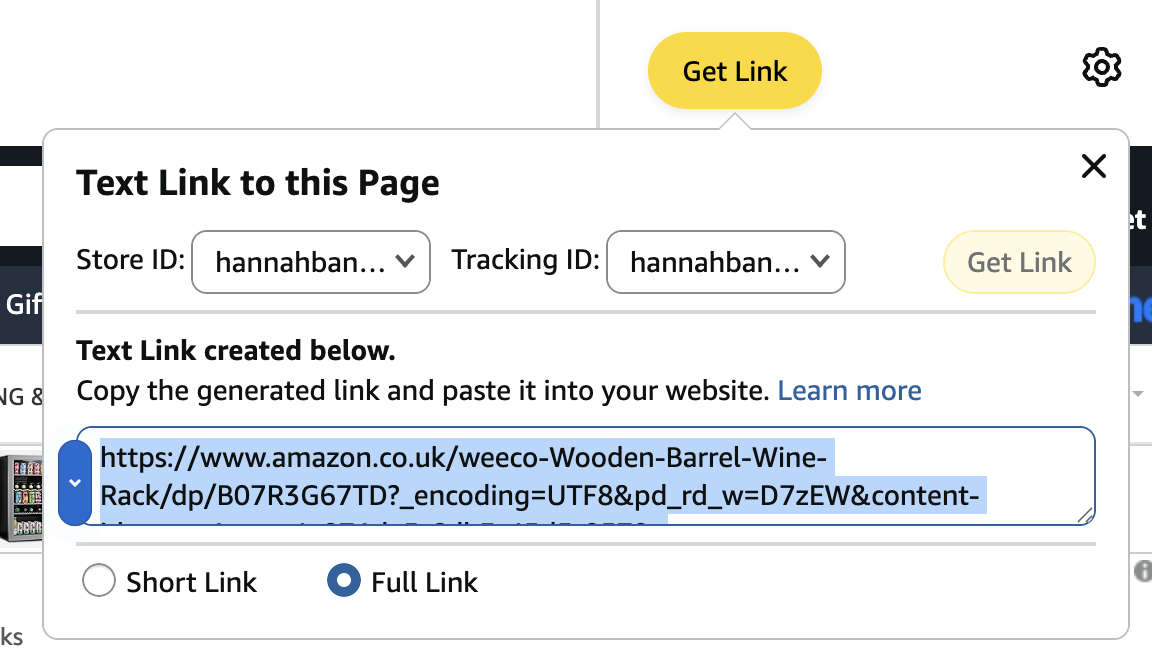
Step 4: NEVER Use the Short Amazon Link
When grabbing your Amazon affiliate link:
❌ Do not use the short version. Pinterest does not allow redirects. Amazon’s short link = redirect.
✅ If you really want to know how to put Amazon affiliate links on Pinterest, SAFELY, this is it > copy the full affiliate link URL directly from Amazon.
Paste that into the “use a link” field.
Press enter and a bunch of product images should appear … yay!
Step 5: Mark as Affiliate or Sponsored
This is critical.
Like, absolutely critical!
Before selecting the product image, click 👉🏻 Affiliate link / Sponsored product
If you don’t disclose?
You are violating policy.
And it’s illegal to share affiliate links without disclosure.
Pinterest actually gives you the built-in tool to do it properly. Use it.
This is one of the most important steps in how to put Amazon affiliate links on Pinterest correctly.
Step 6: Turn OFF “Show Similar Products”
This is the hidden feature most people ignore.
If “Show Similar Products” is switched on, Pinterest will display competing items next to your Pin.
That means your traffic could go to someone else’s product.
No thanks.
Switch it off.
Control your conversions.
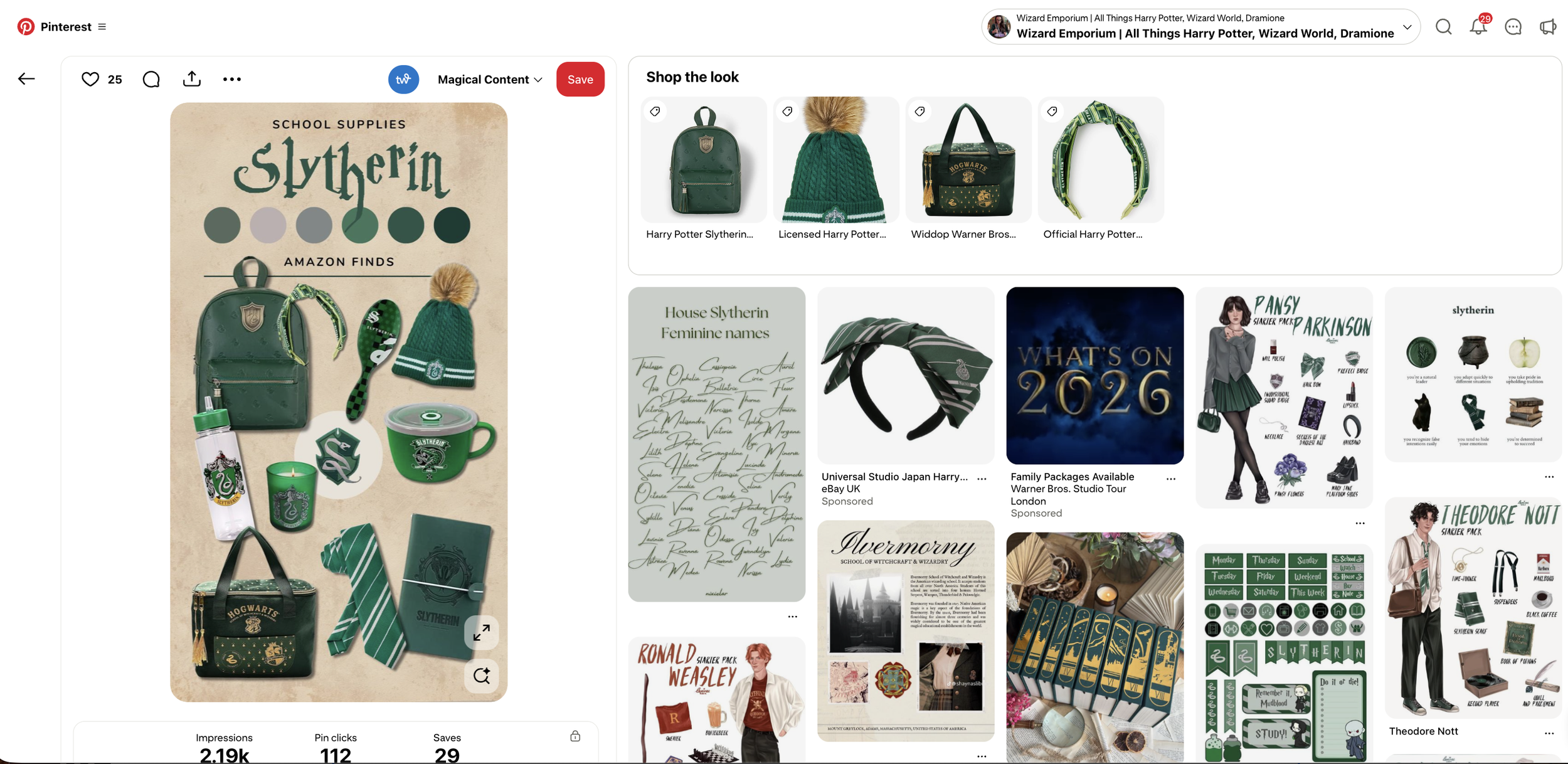
What It Looks Like When Done Right
When someone clicks your Pin, they’ll see: “Shop the Look” and all tagged products appear in a scrolling section either next to the pin if on the desktop, or below the pin if on the app.
They can shop instantly.
No confusion.
Compliant. Clean. Strategic.
This is How to Do Affiliate Marketing on Pinterest Without a Website
Now let’s talk about the big question: How to do affiliate marketing on Pinterest without a website?
Yes, you can tag Amazon affiliate links directly like this.
But here’s my honest opinion:
Direct tagging is fine.
Long-term strategy? Context wins.
When you send traffic to:
A blog
A YouTube video
A product comparison
A buying guide
You can:
Add more affiliate links
Build trust
Grow an email list
Run ads
Layer monetisation
Direct Pinterest tagging is the shortcut.
Blog or YouTube traffic is the long game.
And usually? The long game earns more.
Should You Send Traffic to a Blog Instead?
If you want sustainable income, yes.
But it doesn’t have to be a blog, it could be a YouTube video, a landing page or even a digital product!
These options further your monetisation opportunities, because all of these options can be monetised through third-party ads or hosting multiple affiliate links in one place.
Pinterest users are planners.
They want:
Inspiration
Ideas
Buying confidence
Reviews
Comparisons
So instead of just learning how to put Amazon affiliate links on Pinterest, ask yourself: How can I add value? (and monetisation opportunities)
Example:
Instead of just:
“Harry Potter Desk Lamp”
Create:
“Top 10 Hogwarts Aesthetic Desk Accessories”
Tag a few products directly AND drive traffic to your blog for the full list.
Now you’re:
Earning Amazon commission
Earning ad revenue
Capturing emails
Building authority
Much smarter.
Multi-Board Strategy for More Exposure
If you're implementing how to put Amazon affiliate links on Pinterest properly, you also need a distribution strategy.
So, here’s a bonus tip …once your Pin is live:
Use Tailwind (optional but powerful).
Schedule to:
Highly relevant boards
Aesthetic-specific boards
Gift idea boards
Seasonal boards
Keep it relevant.
Don’t spam.
Pinterest rewards consistency, not chaos.
Common Mistakes to Avoid as an Amazon Affiliate on Pinterest.
Let’s recap the big ones:
Using short links
No disclosure
Forgetting to mark the affiliate toggle
Leaving similar products switched on
No keyword research
No context
Over-tagging
You don’t need to tag 15 products.
Strategic tagging performs better.
Is This the Best Way to Monetise Amazon Affiliate on Pinterest?
It works.
But here’s the real answer.
Best method?
Pinterest → Blog or YouTube or landing page → Affiliate + Ads + Email Funnel.
Direct tagging is great, but layered monetisation is smarter.
If you're serious about scaling your Amazon affiliate income through Pinterest, think ecosystem - not just links.
Final Thoughts: How to Put Amazon Affiliate Links on Pinterest Safely
If you remember nothing else from this guide, remember this:
Yes, you can use Amazon affiliate links on Pinterest
Use the full URL
Always disclose
Turn off similar products
Add keywords
Prefer value over shortcuts
That’s how to put Amazon affiliate links on Pinterest without risking your account - and seeing results!
And if you want the full system - keyword research, templates, content planning, strategy, monetisation, and 90 days of support?